
Connecting AI to Your Smart Home: How to Set Up Google Home MCP (and What to Watch Out For)
Google Home MCP now lets AI agents control your lights, locks, and thermostat. Here's how to set it up safely — and what permissions you should never grant.
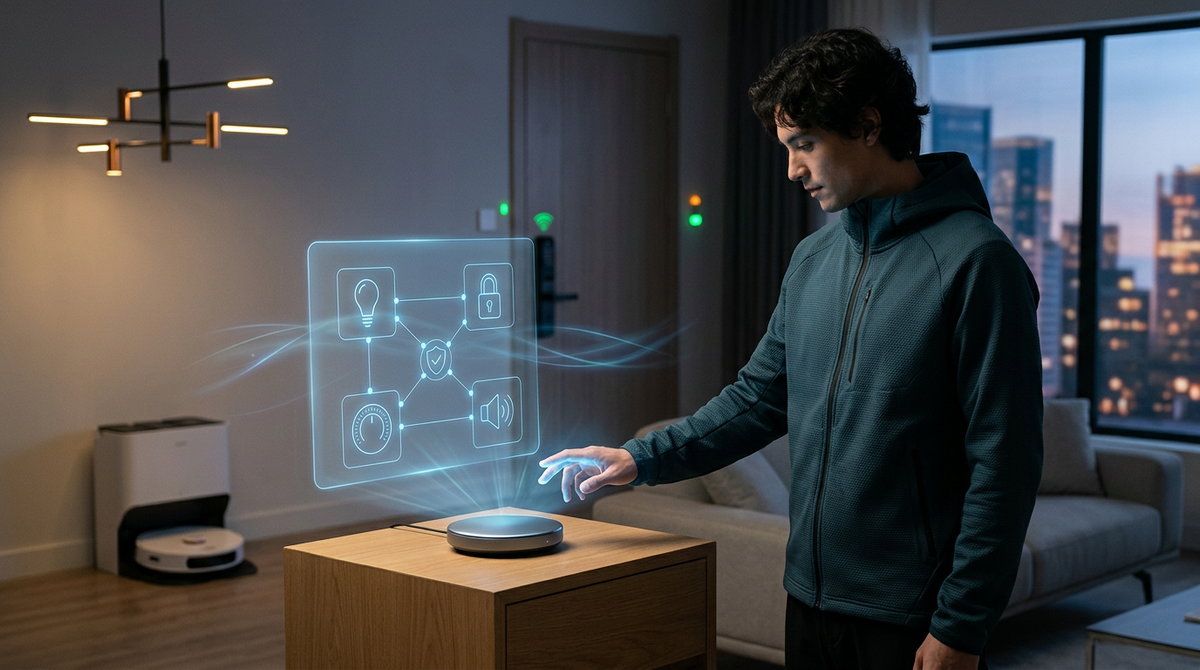
Your AI assistant just got the keys to your house.
That's not a metaphor. This week, Google opened early access to its Google Home MCP surface — a new way for AI agents to directly query and control your smart-home devices through a standardized protocol called the Model Context Protocol. Lights. Thermostats. Door locks. Cameras. If it's connected to your Google Home, an AI agent can now reach it.
For some people, that sentence is exciting. For others, it's terrifying. Both reactions are reasonable.
The truth is somewhere practical: this is a genuinely useful capability, but only if you set it up carefully. And the timing of this launch matters. The same week Google Home MCP entered early access, Spain reported the first known data breach executed end-to-end by an AI agent — a story that should make anyone pause before handing an AI the ability to unlock their front door.
This guide walks you through the full Google Home MCP AI setup — what you need before you start, how to authorize device access without overexposing your home, practical use cases that actually justify the effort, and a security checklist you should complete before connecting anything.
Let's get into it.
What Google Home MCP Actually Is (Plain English Version)
MCP stands for Model Context Protocol. Think of it as a universal translator between AI agents and the tools they need to use. Instead of every AI tool building its own custom connection to every smart-home platform, MCP creates a standardized way for any compatible AI agent to talk to any compatible service.
Google Home is one of the first major smart-home platforms to support it. What that means in practice: if you have an AI agent that supports MCP — whether it's something you've built yourself or a tool that offers custom AI agents — it can now send commands to your Google Home devices. "Turn off the living room lights." "Set the thermostat to 68." "Is the garage door open?"
Previously, getting an AI to control your smart home required cobbling together voice assistants, IFTTT recipes, custom scripts, or third-party automations that broke every other month. MCP is supposed to make that cleaner and more reliable.
The key word there is "supposed to." This is early access. Things will be rough around the edges. But the foundation is real, and it's worth understanding now — because this is clearly the direction smart-home AI is heading.
What You Need Before You Start
Before you touch a single setting, make sure you have these prerequisites in place. Missing any one of them will stop you cold.
1. A Google Account with Premium Advanced Access
Google Home MCP is currently gated behind their Premium Advanced tier. If you're on a free Google account or a standard Google One plan, you won't see the MCP options in your Google Home developer console. This is Google's way of limiting early access to users who are more likely to understand what they're doing (and more likely to pay for the privilege).
Check your subscription status at myaccount.google.com before proceeding.
2. A Google Cloud Project
This is where most non-technical users hit a wall. You need a Google Cloud project linked to the same account as your Google Home. If you've never created one, it's free — but the interface is intimidating.
Here's the short version:
- Go to console.cloud.google.com
- Click "Select a Project" → "New Project"
- Name it something recognizable (e.g., "My Home MCP")
- Enable the Google Home API within that project
- Create OAuth credentials (you'll need these to authorize your MCP connection)
If that paragraph made your eyes glaze over, you're not alone. Google's documentation walks through each step, but it's written for developers. The important thing to know: you're basically creating a secure "container" that Google uses to track which AI agents have permission to talk to your home devices.
3. At Least One Compatible Smart-Home Device
This sounds obvious, but check that your devices are actually visible in the Google Home app and responding to commands. If your smart bulb hasn't connected properly to Google Home in the first place, MCP won't fix that.
4. An MCP-Compatible AI Agent or Tool
You need something on the AI side that can actually use the MCP connection. This could be a custom agent you've configured, a third-party AI tool that supports MCP, or an all-in-one AI tool that lets you build and deploy agents with tool-use capabilities.
Step-by-Step: Connecting Your AI Agent to Google Home via MCP
Once your prerequisites are in place, here's the actual setup process. I'm going to be specific, because vague instructions help nobody.
Step 1: Enable the Google Home MCP Surface
In your Google Cloud console, navigate to the Google Home API settings for your project. Look for "MCP Surfaces" under the early-access features section. Enable it. You'll need to accept additional terms of service — read them. They specify what data your AI agents can access and what Google logs.
Step 2: Register Your AI Agent
Your AI agent needs an identity that Google can recognize. In the MCP configuration panel, you'll register a new "agent client." This generates a unique client ID and secret. Think of it like creating a username and password for your AI agent — except the agent uses these credentials automatically, not a human typing them in.
Keep these credentials private. If someone else gets your agent's client ID and secret, they could potentially send commands to your home devices.
Step 3: Define Device Scopes
This is the most important step, and the one most people will rush through.
Google Home MCP lets you define exactly which devices and which actions your AI agent can access. The options typically include:
- Read-only access: The agent can check device status ("Is the light on?") but can't change anything.
- Control access: The agent can turn devices on/off, adjust settings, etc.
- Full access: The agent can control devices and modify their configurations.
Start with read-only. Seriously. Get comfortable with the connection working before you give an AI agent the ability to change things in your physical environment. I'll cover this more in the security section below.
Step 4: Authorize the Connection
You'll go through a standard OAuth flow — Google will ask you to sign in and confirm that you want to grant your registered AI agent access to the device scopes you selected. You'll see a permissions screen listing exactly what the agent can do. Review it carefully.
Once authorized, your AI agent can begin sending queries and commands to your Google Home devices through the MCP protocol.
Step 5: Test with a Simple Query
Before building elaborate automations, test with something harmless:
"What is the current temperature setting on my thermostat?"
or
"List all devices in my living room."
If you get a coherent response, the connection is working. If you get errors, the most common culprits are: wrong Cloud project linked, OAuth credentials not matching, or devices not properly synced in Google Home.
Step 6: Build Your First Automation
Once the connection is confirmed, you can start creating useful automations. If your AI tool supports scheduled AI tasks, you can set up recurring commands — like adjusting your thermostat at specific times or turning off all lights at midnight.
Practical Use Cases Worth the Setup Effort
Let's be honest: not everything needs AI. You don't need an AI agent to turn on your kitchen light. A switch works fine.
But there are scenarios where connecting AI to your smart home genuinely saves time, energy, or money. Here are the ones that actually justify the setup.
Automated Content-Studio Lighting
If you create videos, stream, or record podcasts at home, lighting matters — and it's annoying to manually adjust every time. An AI agent connected to your smart lights can respond to a single prompt:
"Set up my recording configuration — key light to 80%, fill light to 60%, overhead off, bias light on."
You could also tie this to a scheduled task: every weekday at 9 AM, set the studio to recording mode. Every evening at 6, reset to normal living-room lighting. Creators who work from home — and there are a lot of them — can check out more AI workflows designed for content creators to see how this fits into a broader production setup.
Energy Scheduling That Adapts
Most smart thermostats have basic scheduling. But an AI agent can do something smarter: adjust based on context. If you tell your agent your work-from-home schedule, it can keep the house comfortable during your working hours and let it drift during the hours you're typically out. If your schedule changes — say you're traveling Thursday — you update the agent, not six different device schedules.
A practical prompt for this:
"I'll be away from Thursday morning through Sunday evening. Set the thermostat to 62°F while I'm gone, then return to my normal schedule Sunday at 7 PM. Turn off all smart plugs in the office."
That's one sentence replacing what would otherwise be a series of manual adjustments across multiple apps.
Accessibility and Hands-Free Living
This is the use case that doesn't get enough attention. For people with mobility limitations, chronic pain, or conditions that make it difficult to physically interact with devices, an AI agent that controls the home environment through natural language is genuinely life-improving.
Voice assistants already help with this, but MCP-connected AI agents can handle more complex, multi-step requests:
"When I say 'winding down,' dim the bedroom lights to 20%, set the thermostat to 70, lock the front door, and turn on the white noise machine."
That's a bedtime routine executed with two words.
Household Coordination for Families
Parents managing a busy household can use AI agents to handle the small stuff that adds up. Morning routines, after-school lighting changes, weekend energy-saving modes. The value isn't in any single command — it's in not having to think about twenty small adjustments every day.
The Security Checklist You Need Before Connecting Anything
Now for the part that matters most.
The same week Google Home MCP entered early access, AI Weekly reported that Spain had identified the first known data breach executed entirely by an AI agent. Not an AI assisting a human hacker — an autonomous agent that identified a vulnerability, exploited it, and exfiltrated data on its own.
That story isn't directly about smart homes. But the principle is identical: when you give an AI agent permissions to interact with real systems, the scope of those permissions becomes a security boundary. Get it wrong, and you've created an attack surface that didn't exist before.
Here's your checklist.
Permissions to Grant
- Read access to lights, thermostat, and non-sensitive devices. Low risk. If an agent can see that your living room light is on, that's not dangerous information.
- Control access to lights and climate devices. Moderate risk, but manageable. The worst case is your lights flicker or your thermostat gets set to an odd temperature.
- Scheduled automation for routine tasks. Fine, as long as you review what's being scheduled.
Permissions to Deny (At Least Initially)
- Control access to door locks. Do not give an AI agent the ability to unlock your doors until you've thoroughly tested the connection and trust the security of your agent's credentials. A compromised agent with lock access is a physical security threat.
- Control access to security cameras. An agent that can disable your cameras is an agent that can blind your security system.
- Full configuration access to any device. This lets the agent change device settings, rename devices, or modify network configurations. There's almost no everyday reason to grant this.
- Access to devices you don't use regularly. If you have a smart plug in a guest room you forgot about, don't include it in your MCP scope. Smaller attack surface = better security.
Additional Security Steps
- Use a dedicated Cloud project. Don't reuse a Cloud project that has other services or APIs enabled. Isolate your smart-home MCP connection.
- Rotate your agent credentials periodically. Every 90 days is reasonable. If your credentials leak, the window of exposure is limited.
- Review agent activity logs. Google Cloud logs API calls. Check them monthly. If you see commands you didn't initiate, revoke access immediately.
- Don't share agent credentials across multiple tools. Each AI tool or agent should have its own registered client. If one gets compromised, you revoke one set of credentials, not all of them.
- Keep your Google account secured with two-factor authentication. This is table stakes. If someone accesses your Google account, they can modify your MCP permissions directly.
For a deeper understanding of how your data is handled when using AI tools, it's worth reviewing a clear privacy policy from any platform you connect to your home.
What Most People Will Get Wrong
Based on how people typically adopt new smart-home features, here's what I expect to see go sideways:
Granting maximum permissions because it's faster. The setup process asks you to choose scopes. The temptation is to select "all devices, full access" so you don't have to come back and adjust later. Resist this. Start narrow, expand as needed.
Not testing before automating. People will set up a scheduled automation on day one without confirming the basic connection works. Then they'll wake up to a house that's 55°F because the thermostat command failed silently and the fallback behavior wasn't what they expected.
Forgetting this is early access. Things will break. Commands will occasionally fail. Device states might not sync perfectly. If you're relying on MCP for anything critical — like security-related automations — have a manual backup plan.
Treating AI agents like infallible assistants. An AI agent connected to your home is still an AI. It can misinterpret commands, hallucinate device names, or execute actions you didn't intend. Always verify the first few times a new automation runs. Check the results. Don't assume.
Ignoring the Spain breach lesson. The agent-executed breach in Spain happened because an AI agent had permissions that exceeded what was necessary for its task. The same principle applies to your smart home. Every permission you grant is a permission that can be misused — whether by a compromised agent, a software bug, or a prompt-injection attack you haven't thought of yet.
Useful Prompts to Get Started
Once your connection is live and tested, here are some practical prompts you can adapt:
Morning routine:
"At 6:30 AM on weekdays, turn on the kitchen lights to 70%, set the thermostat to 72°F, and turn on the coffee maker smart plug."
Energy savings while away:
"When I leave the house, set all lights to off, thermostat to 62°F, and turn off all smart plugs except the refrigerator and security camera."
Evening wind-down:
"At 9 PM, dim all lights to 30%, set the bedroom thermostat to 68°F, and turn on the bedroom fan smart plug."
Quick status check:
"Give me a status report: which lights are currently on, what's the thermostat set to, and are any doors unlocked?"
These work best when your AI tool supports multi-step instructions and can handle scheduled tasks that run without you manually triggering them each time.
Where This Fits in the Bigger AI Picture
Google Home MCP is one piece of a larger shift: AI moving from answering questions to taking actions. Generating text was step one. Generating images and video was step two. Now we're entering step three — AI agents that interact with the physical world.
That's powerful. It's also a reason to be thoughtful rather than impulsive.
If you're someone who uses AI for multiple things — writing, creating images, building automations, generating content — the friction of managing separate tools for each task gets old fast. An all-in-one AI tool that handles text, images, video, music, and agent-based workflows in one place makes the whole ecosystem more manageable. Instead of juggling five dashboards, you work from one.
That consolidation matters even more when you're connecting AI to physical devices. You want to know exactly which tool has which permissions, and you want to manage that from as few places as possible.
For more hands-on walkthroughs like this one, the guides and how-to section covers a wide range of AI workflows — from creative projects to productivity setups.
Final Thought
Connecting AI to your smart home is no longer theoretical. Google Home MCP makes it real, and the setup — while not trivial — is manageable for anyone willing to spend an afternoon on it.
But "can" and "should" are different questions. Start with read-only access. Test before you automate. Keep your most sensitive devices — locks, cameras, security systems — out of scope until you're confident in the setup. And pay attention to stories like the Spain breach, because they're previews of the risks that come with giving AI agents real-world capabilities.
Done carefully, this is one of the most practical AI integrations available right now. Done carelessly, it's a security headache waiting to happen.
Be the careful one.
Start creating text, images, videos, music, and more in one place at https://gab.ai.
Try Gab AI
Try Gab AI for uncensored chat, real-time web search, and high-quality content generation.



