
How to Run LFM3 Locally: A Practical Guide to Self-Hosting Liquid AI's Sparse Model
Liquid AI's LFM3 uses a mixture-of-experts architecture to keep active computation low relative to total model size, making local self-hosting surprisingly practical. Here's exactly how to set it up on consumer hardware.
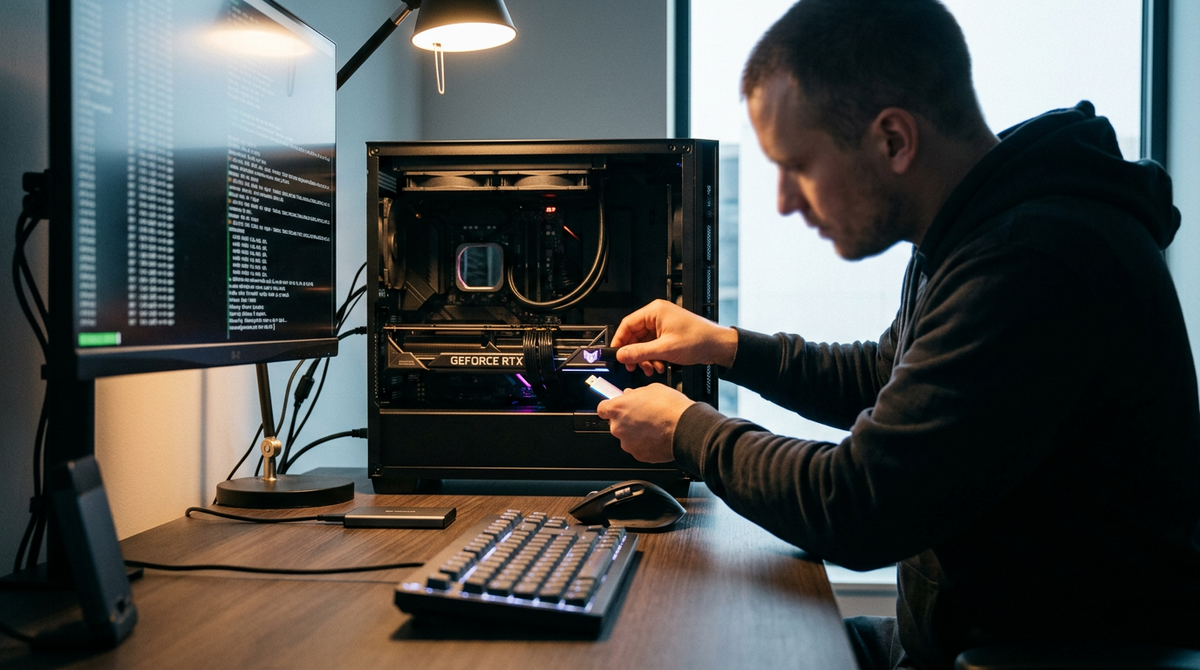
How to Run LFM3 Locally: A Practical Guide to Self-Hosting Liquid AI's Sparse Model
A large-parameter AI model running on your personal computer. A year ago, that sentence would have earned you a polite eye-roll from anyone who actually understood the hardware involved. But Liquid AI's LFM3, which was announced in late October 2026, changes the math — literally.
The trick is mixture-of-experts (MoE). Instead of firing all of its parameters every time you send it a message, LFM3 activates only a fraction of them per token. That's the computational footprint of a much smaller model, packed inside a much smarter one. The result? You can potentially run LFM3 locally on hardware that a freelancer or small team might already own, keep your data entirely private, and stop paying per-token cloud API fees.
This guide walks you through the entire process — from choosing the right version to downloading weights, picking your runtime, estimating your hardware needs, and actually getting useful output. No PhD required.
A note on specifics: LFM3 is a new release, and some technical details — exact total parameter count, precise active parameters per token, and official hardware benchmarks — may evolve as Liquid AI publishes more documentation and the community runs its own tests. The hardware estimates below are based on general principles for MoE models of this class and standard quantization math. Check Liquid AI's official model card on Hugging Face for the latest confirmed specs before you download.
Why MoE Models Like LFM3 Are Different From the Dense Models You've Tried
Most AI models you've heard about are "dense" — every parameter participates in generating every single token of output. That's like hiring 30 people to answer a question when only a few of them have relevant expertise. It works, but it's wildly inefficient.
LFM3 uses a mixture-of-experts architecture. Think of it as a team of specialists. When you ask a coding question, the coding experts activate. When you ask about history, a different subset lights up. At any given moment, only a subset of the total parameters are doing the heavy lifting. The rest sit idle, waiting for their area of expertise.
This matters for local hosting because your GPU doesn't need to compute across all parameters simultaneously. The memory footprint is still significant — you need to store the full model weights — but the actual computation per token is closer to what a much smaller dense model demands. That's the gap that makes self-hosting realistic.
Compared to running a dense model of equivalent total size, which might need 24+ GB of VRAM just for inference at half precision, an MoE model's active compute is dramatically lighter. You still need enough RAM or VRAM to load the model, but once it's loaded, it responds faster than you'd expect from something with a large total parameter count.
Choosing Your Version: Language-Only vs. Vision-Language
Based on early reports from the release, Liquid AI released at least two versions of LFM3:
LFM3 (language-only): Handles text in, text out. Writing, analysis, summarization, coding assistance, brainstorming — the standard toolkit. This is the lighter option and the one most people should start with.
LFM3-VL (vision-language): Accepts images alongside text. You can feed it a screenshot, a photo of a whiteboard, a chart, or a document scan, and it'll reason about what it sees. This version is heavier and requires more memory.
Confirm the exact variant names and availability on Liquid AI's Hugging Face page, as naming conventions sometimes shift between announcement and final upload.
If you're a freelancer who mostly needs writing help, code review, or research assistance, start with the language-only version. If you regularly work with visual content — designers, analysts who deal with charts, anyone who processes a lot of documents — the vision-language model is worth the extra resource cost.
My suggestion: get the language-only version running first. Make sure your hardware handles it comfortably. Then try the VL variant if you need it.
Hardware Requirements: What You Actually Need
Here's where most guides get vague. Let's be as specific as we can based on how MoE models of this class typically behave with standard quantization techniques.
The full model weights at 16-bit precision will require a large amount of memory — for a model in the ~30B total parameter range, that's roughly 60 GB. Nobody's running that on a consumer GPU. But you don't need to run at full precision.
Quantized Models Are Your Friend
Quantization compresses model weights from 16-bit to 8-bit, 5-bit, or even 4-bit representations. You lose a small amount of quality — usually imperceptible for everyday tasks — and gain enormous memory savings.
Here's an estimated breakdown for a ~30B-parameter MoE model (these are approximations — check the actual GGUF file sizes on Hugging Face for precise numbers):
| Quantization | Estimated Memory | Minimum Setup |
|---|---|---|
| Q8 (8-bit) | ~30-34 GB | 32 GB RAM + decent GPU, or 48 GB unified memory (Mac) |
| Q5_K_M (5-bit) | ~20-24 GB | 24 GB VRAM GPU (RTX 3090/4090) or 32 GB unified memory |
| Q4_K_M (4-bit) | ~17-20 GB | 24 GB VRAM GPU or 32 GB unified memory |
| Q4_0 (4-bit, simpler) | ~15-18 GB | 16 GB VRAM GPU (RTX 4080) with tight margins |
A few important notes:
For NVIDIA GPU users: An RTX 4090 with 24 GB VRAM is the sweet spot. It'll likely run Q5 or Q4 quantizations entirely on the GPU. An RTX 3090 (also 24 GB) works too, just slower. If you have an RTX 4080 with 16 GB, you'll need aggressive quantization (Q4_0) and might need to offload some layers to system RAM, which slows things down.
For Mac users: Apple Silicon machines with unified memory are surprisingly capable here. A MacBook Pro or Mac Studio with 32 GB of unified memory should be able to run Q5 quantizations. 64 GB gives you breathing room for the VL version too. The trade-off is speed — Apple's GPU cores are slower per-unit than NVIDIA's for this workload, but the unified memory architecture means no bottleneck from shuttling data between CPU and GPU.
For CPU-only setups: Technically possible with enough system RAM (32+ GB), but expect slow generation — maybe 2-5 tokens per second depending on your processor. Usable for short queries, painful for long conversations.
The vision-language version adds overhead for the image encoder. Budget roughly 2-4 GB extra memory on top of the numbers above.
Step-by-Step: Setting Up LFM3 with Ollama
Ollama is the easiest path for most people. It handles model downloading, quantization selection, and serving behind a simple interface. Make sure you're running a recent version — Ollama has been shipping frequent updates that expand local model support.
1. Install Ollama
Head to ollama.com and download the installer for your operating system. It supports macOS, Linux, and Windows.
On Mac or Linux, you can also install via the command line:
curl -fsSL https://ollama.com/install.sh | sh
Verify it's running:
ollama --version
Make sure you're on the latest available version for the best compatibility with new model architectures.
2. Pull the LFM3 Model
If LFM3 is available in Ollama's library (check their model page), pulling it is one command:
ollama pull lfm3
Ollama will automatically select a quantization appropriate for your hardware. If you want to specify a quantization:
ollama pull lfm3:q5_k_m
3. If LFM3 Isn't in Ollama's Library Yet
New models sometimes take a few days or weeks to appear in Ollama's official library. In that case, you'll download the GGUF weights from Hugging Face and create a custom Ollama model.
First, go to Hugging Face and search for LFM3 GGUF quantizations. Community members typically upload quantized versions within days of a model release. Download the GGUF file that matches your hardware (Q5_K_M is a good default).
Then create a Modelfile:
FROM ./lfm3-q5_k_m.gguf

PARAMETER temperature 0.7
PARAMETER num_ctx 4096

SYSTEM You are a helpful, knowledgeable assistant.
Save that as Modelfile in the same directory as your GGUF file, then:
ollama create lfm3-local -f Modelfile
4. Run It
ollama run lfm3-local
You'll get an interactive chat session right in your terminal. Type a question, get an answer. Everything stays on your machine.
5. Use It From Other Apps
Ollama exposes a local API at http://localhost:11434. Many note-taking apps, writing tools, and coding editors can connect to this endpoint. You get the convenience of an AI assistant integrated into your workflow, with zero data leaving your network.
Alternative: Setting Up with llama.cpp
If you want more control — or you're on Linux and comfortable with the terminal — llama.cpp gives you finer-grained options.
1. Build llama.cpp
git clone https://github.com/ggerganov/llama.cpp
cd llama.cpp
make -j
For GPU acceleration with NVIDIA:
make -j GGML_CUDA=1
For Apple Silicon:
make -j GGML_METAL=1
2. Download the GGUF Weights
Same as above — grab the appropriate quantization from Hugging Face.
3. Run Inference
./llama-cli -m ./lfm3-q5_k_m.gguf -p "Explain the difference between a sole proprietorship and an LLC in plain English" -n 512 --temp 0.7
Or start an interactive chat:
./llama-cli -m ./lfm3-q5_k_m.gguf -i --temp 0.7 -n 1024
llama.cpp gives you explicit control over how many model layers get offloaded to your GPU (-ngl flag), which is crucial if your VRAM is tight. For example, if you have 16 GB of VRAM and the model has many layers, you might offload a portion to the GPU and let the rest run on CPU:
./llama-cli -m ./lfm3-q5_k_m.gguf -i --temp 0.7 -ngl 40
Experiment with the -ngl value. More layers on GPU = faster, but if you exceed your VRAM, the process will crash or slow to a crawl.
Prompts Worth Trying Once You're Running
Once LFM3 is up, here are some practical prompts to test its capabilities and get real work done:
For writing assistance:
I'm writing a proposal for a landscaping business. My client is a homeowners' association with 40 homes. Draft a one-page proposal that covers weekly mowing, seasonal planting, and irrigation maintenance. Keep the tone professional but warm. Include a section for pricing that I can fill in.
For analysis:
Here are my monthly business expenses for the last 6 months: [paste your data]. Identify the three biggest areas where spending increased and suggest specific ways to reduce costs without cutting quality.
For learning:
Explain how property taxes are calculated in most US states. I own a home and want to understand my tax bill. Use plain language and a concrete example with a $350,000 home.
For content creation:
Write 5 different subject lines for an email newsletter about a church's upcoming fall festival. The audience is families with kids ages 5-12. Avoid clichés. Make at least two of them curiosity-driven.
These prompts work well because they give the model specific context, a clear task, and constraints on tone or format. Vague prompts get vague answers — that's true of any AI model, local or cloud-based. For more guidance on getting better results from AI, our guides and how-to section covers prompt techniques in depth.
How Does LFM3 Actually Compare to Dense Models?
This is the question everyone asks, and the honest answer is: it depends on the task, and independent benchmarks for LFM3 specifically are still emerging.
Based on how MoE models generally perform relative to dense models of similar total size:
For general conversation, summarization, and straightforward writing, a well-quantized MoE model typically performs close to dense models with comparable active parameter counts. The mixture-of-experts architecture means it has access to a broader knowledge base (the full parameter set) while keeping inference fast.
Where MoE models tend to shine: breadth of knowledge, multi-topic conversations, and tasks that benefit from having specialist "experts" for different domains. A coding question routes to code-trained experts. A creative writing request activates different ones.
Where dense models sometimes edge ahead: very long, coherent creative writing and highly nuanced reasoning chains. Dense models can sometimes maintain a more consistent "voice" over thousands of tokens because every parameter contributes to every decision. MoE models occasionally show subtle inconsistencies when the expert routing shifts mid-response.
But here's the practical reality: for the vast majority of what freelancers, small teams, and everyday users need, the difference is often negligible. And the speed advantage of MoE — faster token generation because less computation per token — often makes the experience feel better overall.
Once community benchmarks for LFM3 start appearing (check places like the Hugging Face Open LLM Leaderboard and Reddit's r/LocalLLaMA), you'll get more precise comparisons. For now, run it and judge the output quality yourself against whatever you've been using.
The Privacy and Cost Argument for Running LFM3 Locally
Let's talk about why you'd bother with all this setup instead of just using a cloud service.
Privacy is the obvious one. When you run LFM3 locally, your prompts never leave your machine. No data gets sent to a server. No conversation logs sit in someone else's database. For anyone handling client information, medical notes, legal documents, financial data, or simply personal thoughts — this matters. A lot.
If you're comparing options for AI chat tools that respect your data, it's worth looking at how different AI alternatives handle privacy. And if you're specifically moving away from cloud-based chat tools, a solid ChatGPT alternative that keeps things local is worth evaluating.
Cost is the less obvious but equally compelling reason. Cloud AI APIs charge per token. If you're a heavy user — running dozens of queries a day, processing long documents, using AI as a regular part of your workflow — those costs add up. A freelance writer running 50+ queries daily could easily spend $30-60/month on API fees. A small team might spend hundreds.
Running locally costs electricity. That's it. Once you have the hardware (which you might already own), the marginal cost per query is essentially zero. Over 12 months, the savings are substantial.
Availability is the third factor people forget. Cloud services go down. They rate-limit you during peak hours. They change their terms of service. Your local model runs when you turn on your computer, period. No outages, no waiting, no surprise policy changes.
What Most People Get Wrong When Self-Hosting AI Models
After helping people set up local models, I see the same mistakes repeatedly:
1. Choosing too large a quantization for their hardware. People see "Q8 is highest quality" and download it, then wonder why their system crawls or crashes. Start with Q4_K_M. If it runs well and you have headroom, try Q5_K_M. Only go to Q8 if you genuinely have the memory to spare.
2. Not offloading enough layers to the GPU. If you have a discrete GPU, make sure you're actually using it. The default in some setups is CPU-only, which is dramatically slower. Check your configuration.
3. Setting the context window too high. A larger context window (how much conversation history the model considers) uses more memory. The default 4096 tokens is fine for most conversations. Don't set it to 32,768 unless you're processing very long documents and have the RAM to support it.
4. Expecting cloud-quality responses from aggressive quantization. Q4_0 is usable, but it's noticeably less nuanced than Q5_K_M or Q8. If your responses feel "dumb," try a higher quantization before blaming the model.
5. Forgetting to write good prompts. This one isn't hardware-related, but it's the most common issue. A local model responds to the same prompt engineering principles as any other AI. Be specific. Give context. State your constraints. "Write me something good" will never produce great output, regardless of the model.
6. Not updating their runtime. Ollama and llama.cpp get frequent updates that improve performance, fix bugs, and add support for new model architectures. If LFM3 isn't working well, make sure you're on the latest version.
Quick Start: What You Can Do in 10 Minutes
If you just want to get something running today, here's the fastest path:
- Install Ollama (2 minutes)
- Open your terminal
- Run
ollama pull lfm3(or the closest available variant) — download time depends on your internet speed - Run
ollama run lfm3 - Ask it something: "Summarize the pros and cons of starting a business as a sole proprietor vs. forming an LLC"
- Evaluate the response. Is it useful? Is it fast enough?
That's it. You now have a large-parameter AI model running entirely on your own hardware, with no data leaving your machine.
If you hit memory issues, pull a smaller quantization. If it runs great, start integrating it into your actual workflow.
When Local Hosting Isn't the Right Call
I want to be honest here: self-hosting isn't for everyone, and it isn't always the best option.
If you need access to multiple AI capabilities — text generation, image creation, video, music — running separate local models for each is a significant project. That's where an all-in-one AI tool makes more practical sense. Instead of managing multiple model files, runtimes, and configurations, you get every AI model in one subscription through a single dashboard. For most people, that combination of convenience and capability is hard to beat.
Local hosting makes the most sense when:
- Privacy is non-negotiable (legal, medical, financial work)
- You have heavy, repetitive text-generation needs
- You want to avoid ongoing subscription costs
- You enjoy tinkering and want full control
Cloud-based tools make more sense when:
- You need image, video, or music generation alongside text
- You want the latest models without managing updates
- Your hardware is limited (older laptop, no GPU)
- You value simplicity over control
Many power users do both — local models for private, text-heavy work, and a cloud tool for everything else.
The Bigger Picture: Why This Moment Matters
LFM3's release isn't just another model launch. It represents a practical tipping point.
For years, the most capable AI models required expensive cloud infrastructure. You either paid per query or you didn't have access. The mixture-of-experts architecture changes that equation. A model with a large total parameter count that runs with the computational cost of a much smaller model on your hardware — that's a genuine shift in accessibility.
Combine that with Ollama's rapidly expanding local model support, the growing ecosystem of GGUF quantizations on Hugging Face, and Apple Silicon's unified memory architecture, and you have a moment where self-hosting AI becomes practical for normal people. Not just researchers. Not just developers. Freelancers, small business owners, parents, students, church administrators.
The AI landscape is splitting into two paths: cloud services that offer convenience and breadth, and local models that offer privacy and independence. The smartest approach is probably understanding both — and knowing when to use each.
Whatever path you choose, the important thing is that you're not locked out of capable AI just because you don't want to send your data to someone else's server. That's a meaningful change.
Ready to explore AI beyond local text models? Start creating text, images, videos, music, and more in one place at https://gab.ai.
Try Gab AI
Try Gab AI for uncensored chat, real-time web search, and high-quality content generation.



