
Direct-download Mac app
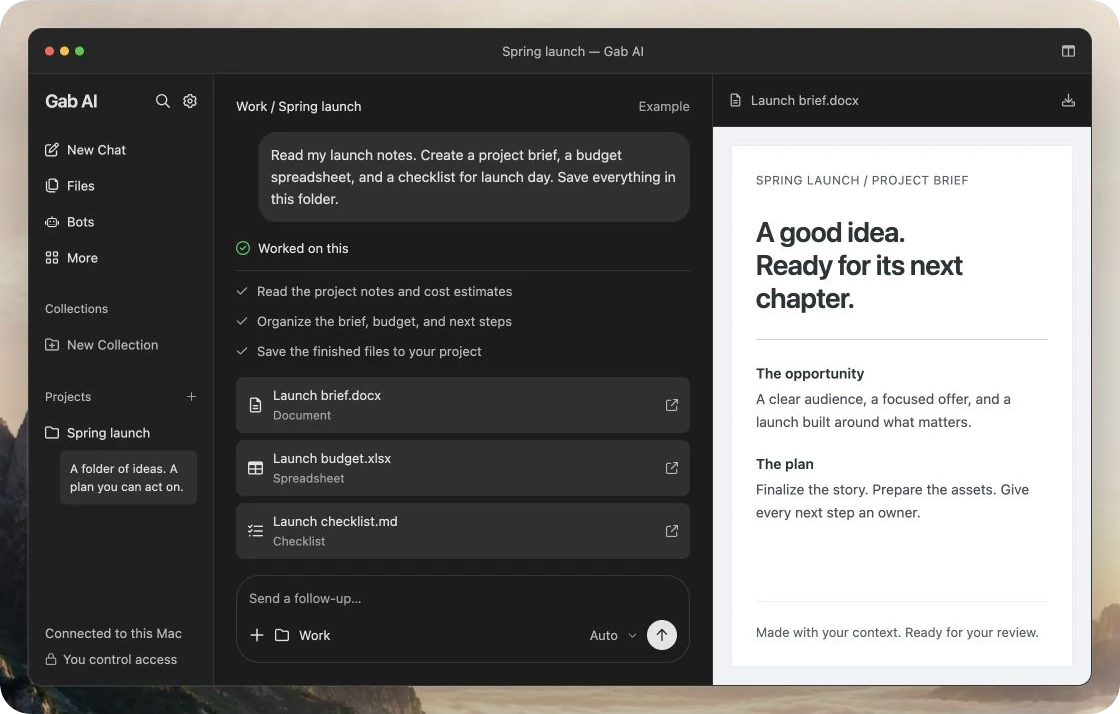
Gab AI for Mac: chat, files and local Work
Turn a question, a document or a folder of files into your next step. Write, research and work on projects with Gab AI beside you on your Mac.
Version 1.1.20 (182)
macOS 12+ · Browser and app control: macOS 14+
Enlarge preview
Gab AI for Mac: chat, files and local Work
Install Gab AI on your Mac
Open the downloaded DMG, drag Gab AI into Applications and open that installed copy. Sign in with your Gab AI account to start a conversation. The direct app runs on macOS 12+; optional browser and app control require macOS 14+. The setup guide covers the full installation and edition details.
Start with your Gab AI account
The Mac app is free to install. Sign in to use your chats and credits. Work requires Plus, and model and tool use can consume credits. See pricing for the current plans.
Account versus device access
| Choice | What to know |
|---|---|
| Chat | Choose an eligible model and check credits. Installation itself is free. |
| Work with your Mac folder | Plus, a compatible direct app and permission for the selected folder. |
| Live Voice | Plus and microphone access; dictation is a separate draft-input workflow. |
| Browser/app control | macOS 14+, compatible direct app, Work and explicit access controls. |
Your next step. Wherever you are.
Step away from your desk. Stay with your idea.
Start a project on your Mac. Add the next instruction from your iPhone or Android phone. Remote brings your shared project folders and conversations with you, so a good idea doesn’t have to wait until you get home.
- Sign in to the same account on both devices.
- Pair your phone and approve it on your Mac.
- Open Remote and continue your project chat.
Keep your Mac awake, online, and Gab AI running. Review sharing during setup: existing and future saved folders are included automatically unless excluded. You can restrict edits.
From a PDF to a clear purchasing note
Ask about a file, then shape the answer for what you need next. In the real Arya example, a workshop quote became a table and a short purchasing note, keeping the USD 370 base total separate from optional printing. Read the source and answers in the lesson.
Bring AI into a project folder
Connect a folder when you want Work to help with its files. Start with a read-only overview: find what is there, understand how the pieces fit and decide what to do next. When you allow edits, review the changes before using them. Attaching one file in Chat and connecting a folder are separate actions. Folder editing, commands and Remote sharing have their own controls; the project guide explains each.
Inspect this connected folder without changing files. List the filenames you used, summarize their purpose and mark missing information. Do not run commands or move files.Work with the page or app in front of you
Connect Chrome, Brave or Microsoft Edge tabs through the Gab AI extension, or set up supported Mac apps. Ask Work to help with a task and use its website approvals and Take over controls as needed. The guide explains the separate connected-tab and Safari/native-app paths.
Gab AI beside every tab.
Chat alongside a page, continue conversations and add page text to your draft in Chrome or Brave. Side chat works without the Mac app; connected-tab Work uses the separate Mac setup and access controls.
For the things you want to build.
From first thought to next commit.
Bring your codebase. Ask Work to understand it, build a feature, or fix a bug. Give it permission to run the relevant local tests and builds, then inspect the results.
- Choose a branch. Keep your project in context.
- Run installed checks and manage development servers.
- Read the diff. Refine the result. Make it yours.
Commands and servers have separate folder permissions. Your project’s tools and dependencies must be installed.
Your files on your Mac, with AI in the cloud
Gab AI uses an internet connection for AI requests. Relevant file and app content can be sent to Gab AI and the selected provider. Local folder permissions and recovery copies stay with the host computer; see the project guide for access and recovery controls.
Mac app questions
Does Gab AI run locally on my Mac?
The app can work with permitted local files, but its AI requests use cloud models and need an internet connection. Relevant task content can be sent to the selected provider.
What is the difference between the Mac app and a browser tab?
The direct Mac app can connect project folders and supported browser or app controls. The web workspace supports Chat, uploaded files and cloud Work.
Do I need macOS 14 for everything?
The app requires macOS 12+. Browser and app control require macOS 14+ and a compatible direct app. The setup guide explains the requirements.
What if local folder or browser controls are missing?
Check your installed edition and its setup guide. The Mac App Store edition uses cloud Work; local folder execution, external browser connection and Remote hosting belong to the direct-download edition.
Can I undo every change?
Review supported saved-file recovery after a task stops. Recovery can be limited by newer changes or lost access, and it does not undo every command or network action. See the project-folder guide before restoring files.
Guides and resources
Find more detail and choose your next step.
Mac setup instructions
A little setup. A lot possible.
WELCOME TO GAB AI FOR MAC
Your download should begin shortly. Here’s how to make yourself at home.
Drag over. Settle in.
Open your download
Find the Gab AI .dmg file in Downloads and double-click it to open the installer.
Drag into Applications
Drag Gab AI onto the Applications folder in the installer window. Wait for the copy to finish.
Open Gab AI. Make it yours.
Open Gab AI from Applications. Choose Open if macOS asks, then sign in to your account.
Once Gab AI is in Applications, eject the installer in Finder. You can then delete the DMG. Connect folders and browser access when you’re ready.

Put AI to work on your Mac.
Start with a question, bring in a file or connect a project when you need help with its contents.